So, you’ve got the clock, you’ve got the tab—but does it vibe with your desk setup?
I built MyClockTab to be minimalist, but "minimalist" shouldn't mean "boring." Whether you want a cozy lo-fi aesthetic or a brutalist "hacker" look, here is how you can transform your clock from a default tool into a personalized masterpiece.
Step 1: Find the "Ghost" Settings Icon
First things first: you have to find the door. To keep the interface clean, the settings icon (top right corner) pulls a vanishing act if you don't move your mouse for a while.
If you don't see it, don't panic. Just wiggle your mouse like you're trying to wake up a sleeping cat, and the icon will reappear. Click it to enter the lab.
Step 2: Habits vs. Aesthetics
The top part of the settings menu is all about your reading habits.
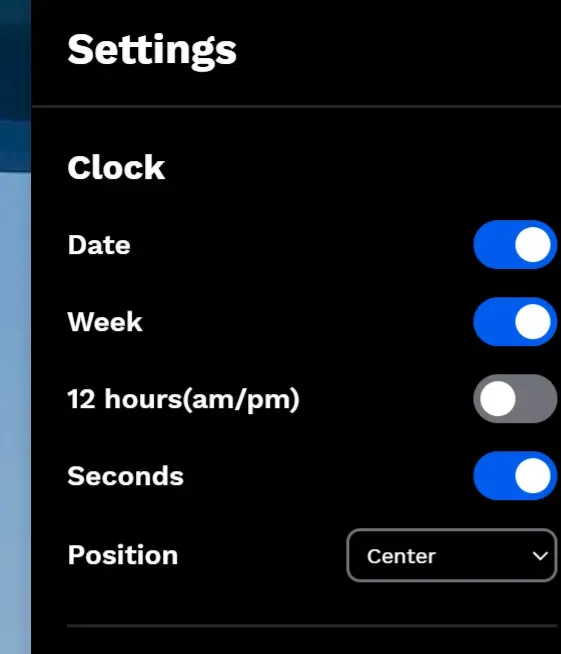
- Date? Week? Yes or no.
- 12/24 hour format? Choose your fighter.
- Seconds? If you like watching your life slip away, turn them on.
These are practicalities. But keep scrolling... that’s where the fun begins.
Step 3: Entering "Theme Mode"
When you start, you’ll see our Default Themes. They’re clean, they work, but they aren't you.
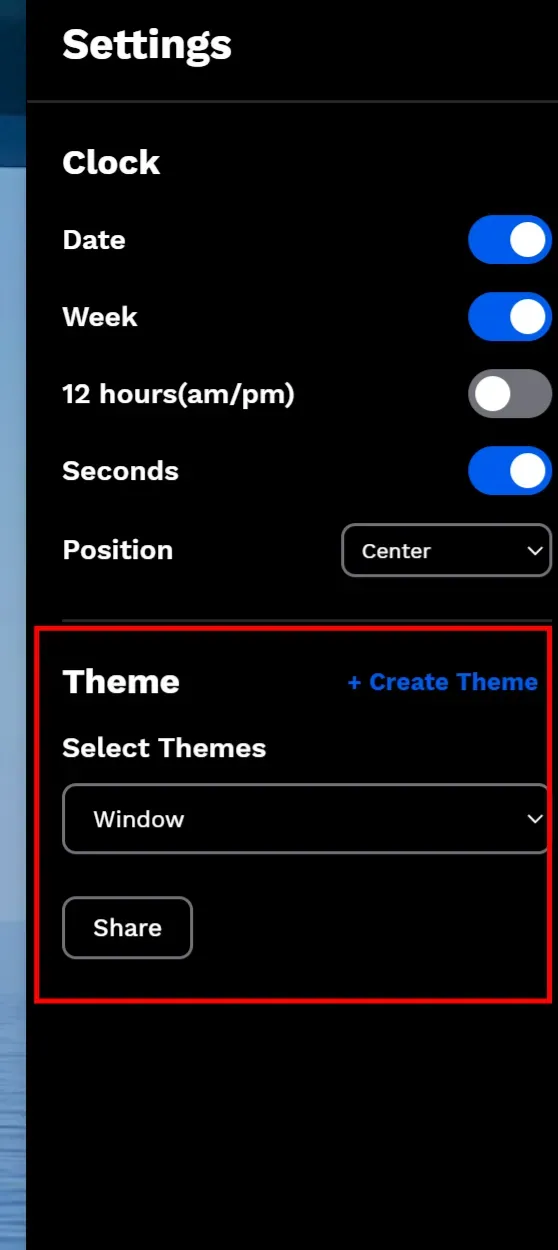
Notice that "+ Create theme" button? Click it. This will "clone" your current theme, giving you a fresh canvas to mess around with without breaking the defaults. (Because we’ve all been there—accidentally making a font neon green on a yellow background and needing a quick way back to sanity.)
Step 4: The Background (The Soul of the Tab)
You have four ways to set the mood:
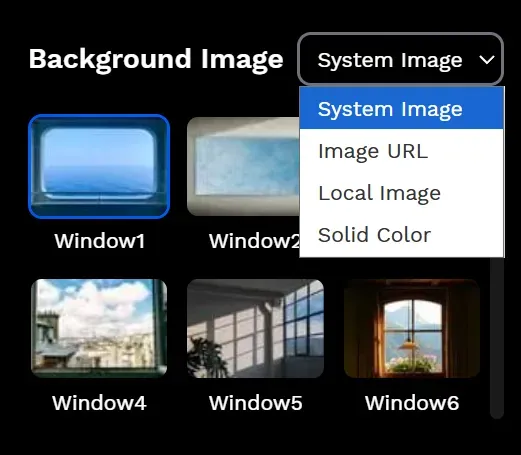
- System Images: A curated selection of "I’m definitely working and not staring at the wall" vibes.
- Image URL: Found a masterpiece on Unsplash or Pinterest? Paste the link. If the internet can see it, your clock can too.
- Local Image: Want a photo of your dog? Upload it here. Privacy Note: Your image stays on your computer. It’s stored in your browser cache and never hits our server. I don't want to see your dog; I want you to see your dog.
- Solid Color: For the "I use Vim and my soul is dark" crowd. Pure, simple, distraction-free.
Step 5: Fonts & Styling
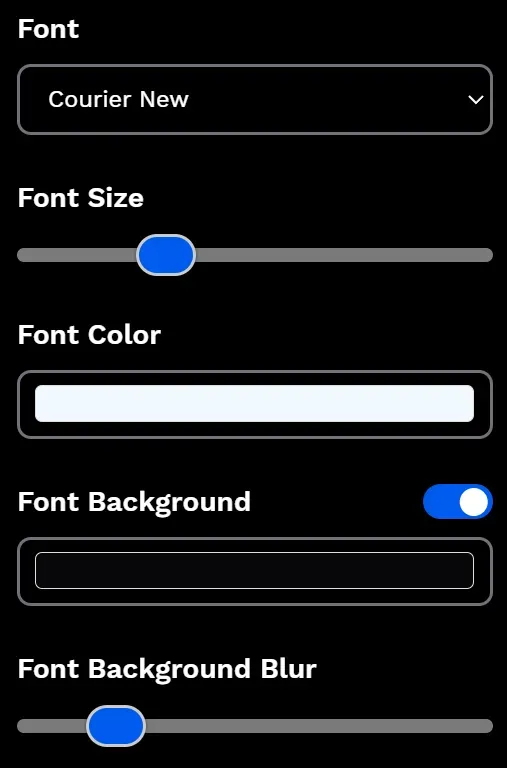
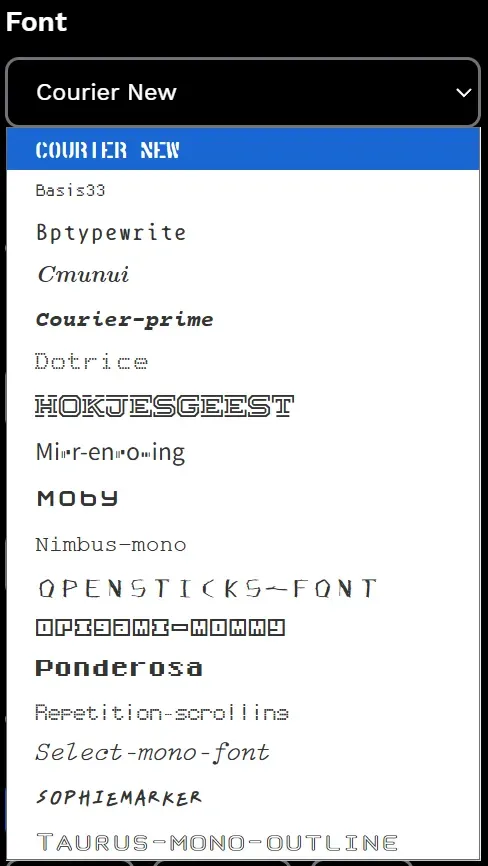
We’ve got 17 different fonts waiting for you. You can adjust the size, the color, and even the font background to make sure the time is readable against whatever chaotic background image you chose.
Step 6: The "Don't Forget" Part
Once you’ve achieved perfection:
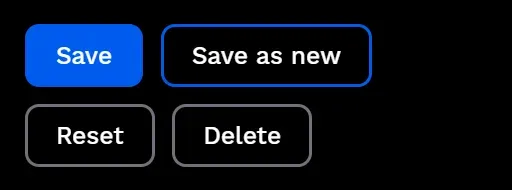
- Click Save: This locks it in.
- Save as New: If you’re a "theme hoarder" like me and want five different versions of the same look.
- Reset: For when you realize that neon green on yellow was, in fact, a mistake.
Share the Love (and the Aesthetics)
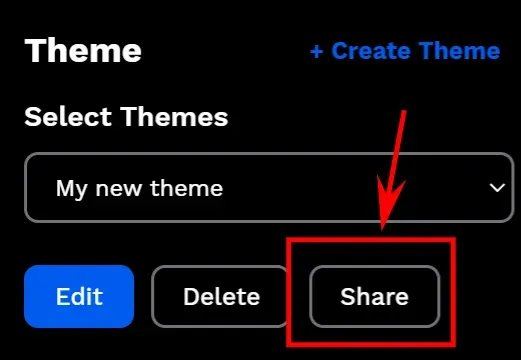
Once your theme is saved, it’ll live in your theme list. Use the 'Share' button to generate a link and show off your creation.
I’m genuinely excited to see what you guys come up with. If you create a theme that looks incredible, @WillSunPlayer on X! I’m looking forward to seeing my creation become a part of your daily workflow.
Happy customizing!